Share content and annotate
Matrx enables meeting participants to share any content on their screen, or choose to share a particular program running on their computer, or a whiteboard. Participants can also annotate together on the shared content and visualize their ideas and thoughts.
Windows and macOS
Share Content
-
Click on the "Share" button at the bottom toolbar of the meeting when nobody is sharing and you have the share screen permission.
-
You can choose to share your entire screen by clicking the desktop, letting other participants see whatever is on your screen. Or you can also select one of the programs that are running on your computer and other participants can only view the shared program. Or you can also select the whiteboard and annotate together to create content.
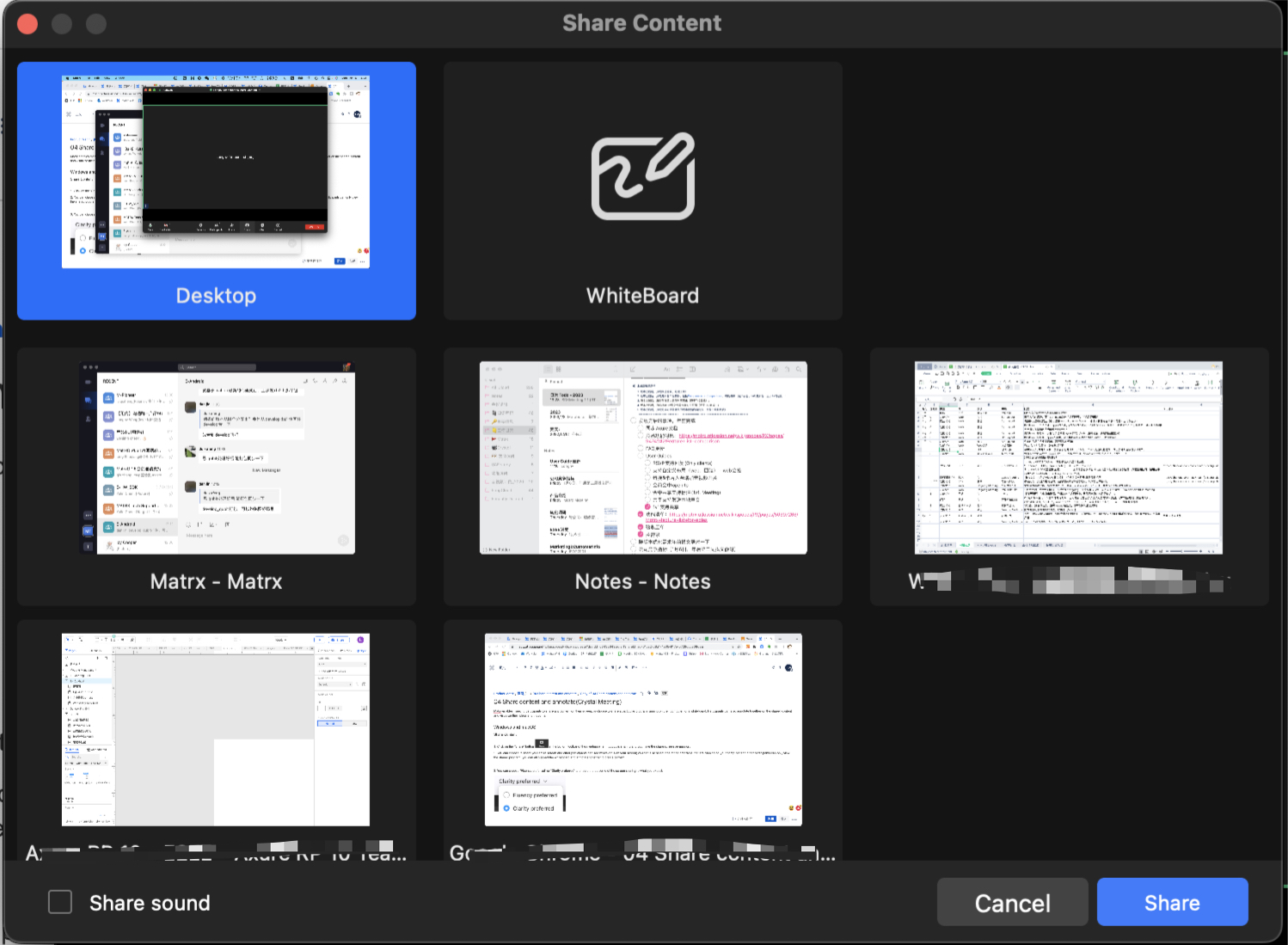
- You can choose "Share sound"
 to share the local sound of your computer while sharing the screen or a program.
 - Click on the "Share" button to initiate content sharing.
- Click on the "New Share" button to change the content you share.
- Click on the "Stop sharing" button to stop sharing.
 Annotate
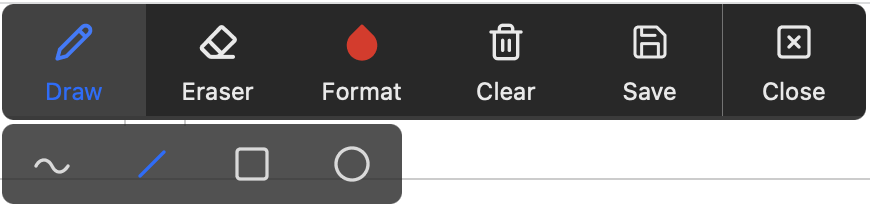
 - After the sharing is initiated, move to the toolbar, click on the "Annotate" button, and start to annotate with other participants together on the shared content.

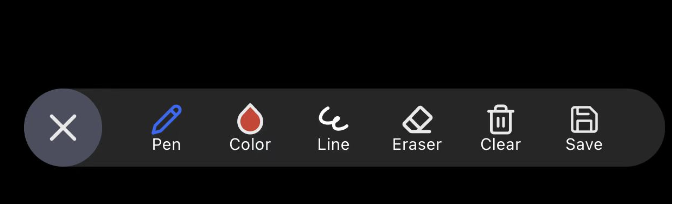
- All participants can draw lines, select the line color and weight, erase, clear, save the annotation content as images, and open the images.
Android and iOS
Share Content
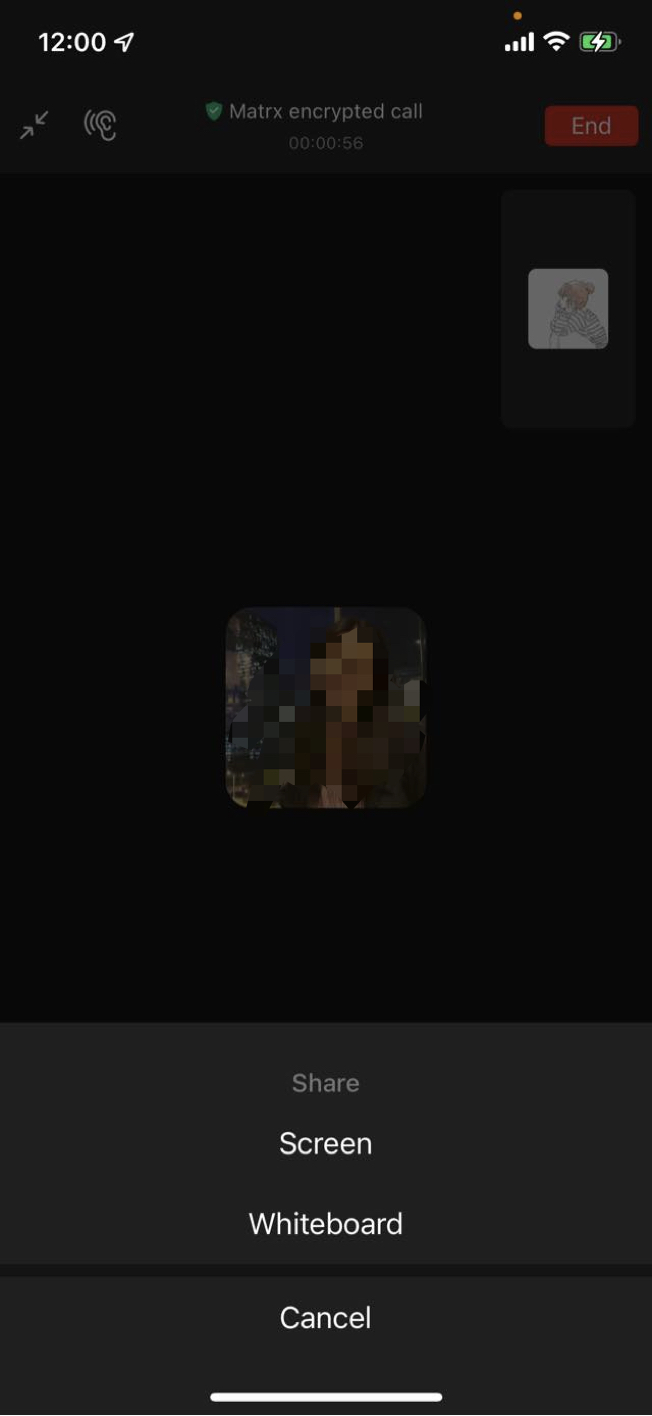
- Tap the "Share" button at the bottom toolbar of the meeting when nobody is sharing and you have the share-screen permission.
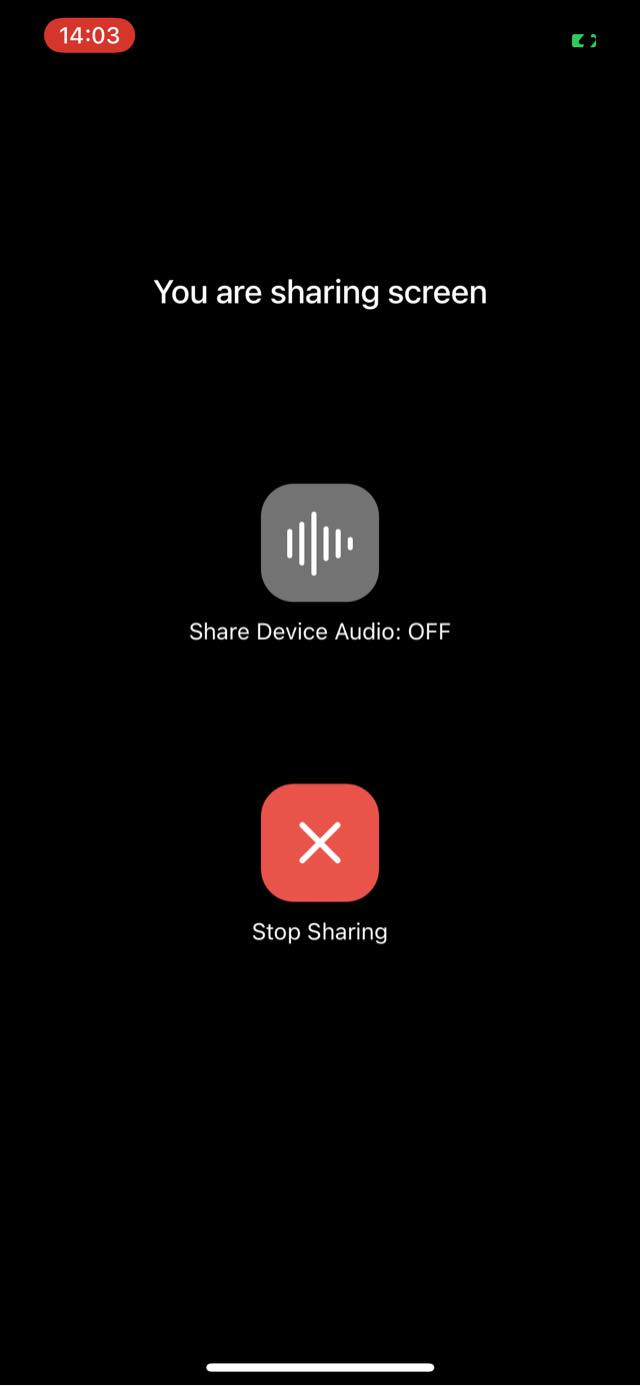
- Tap “Screen” to initiate the sharing of the screen on your mobile.
- Tap "Switch Device Audio" to share or stop sharing the sound of your mobile.
- Tap "Stop Sharing" to stop sharing.
 Annotate
 - When the sharing whiteboard, you can initiate the annotation within the meeting by tapping the "Annotate" button.
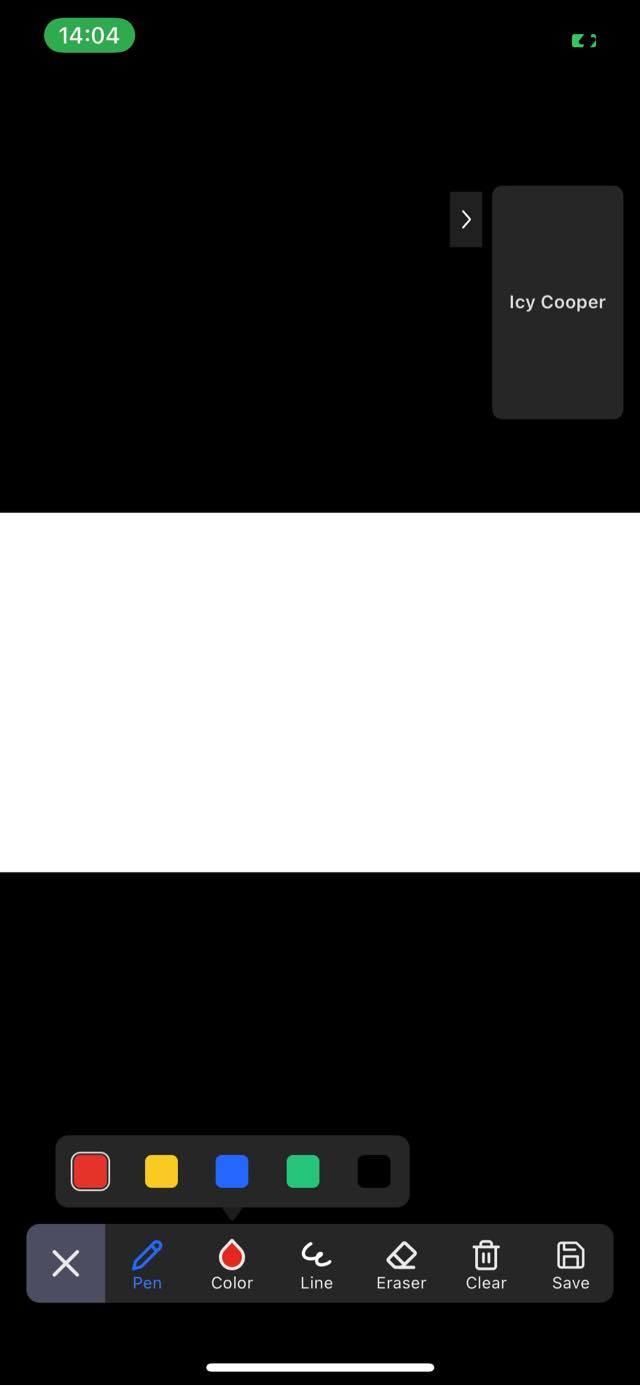
- All participants can draw lines, select the line color and weight, erase, clear, and exit the annotation.